

Document Translator
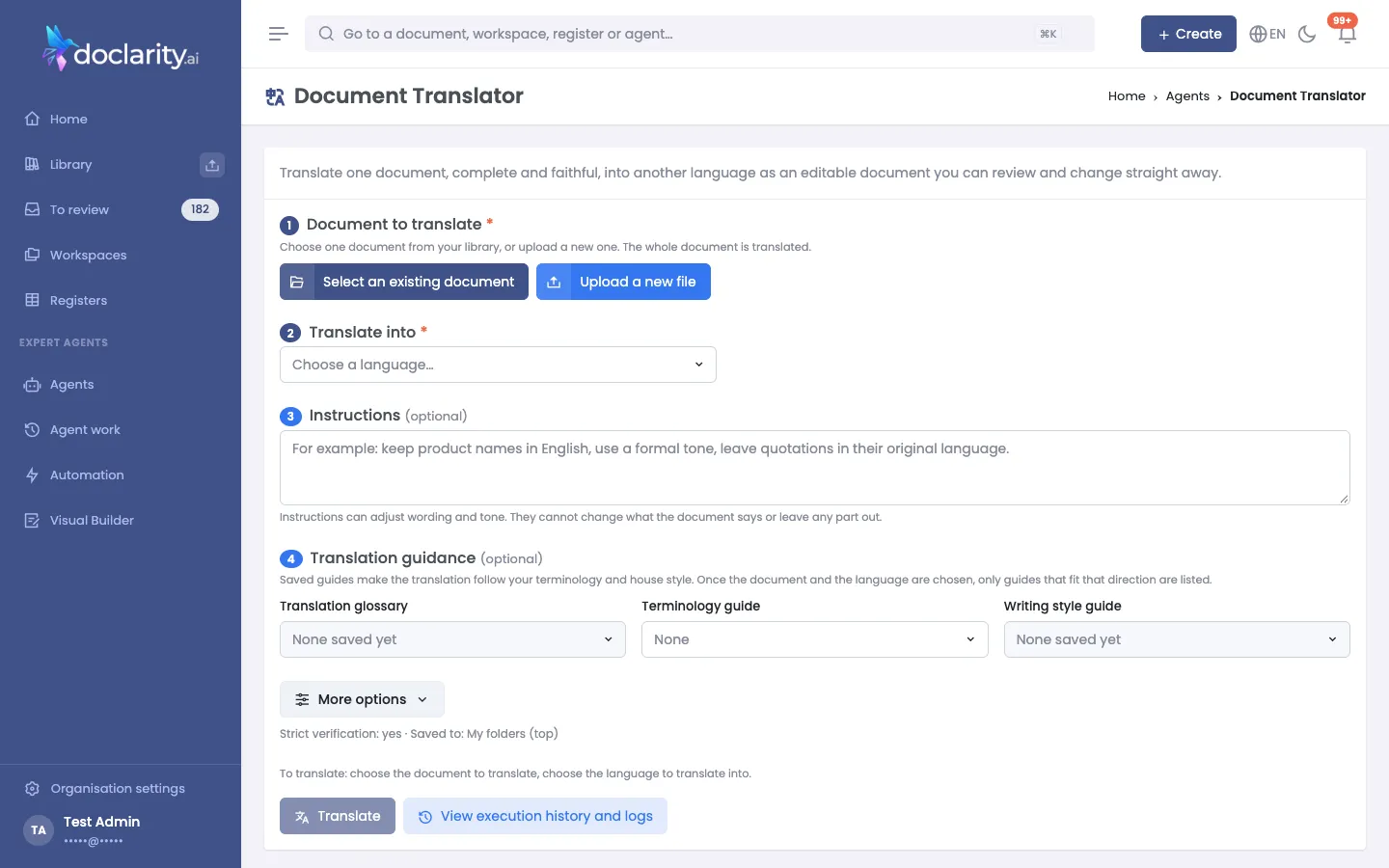
What it is for: translating one document, complete and faithful, into another language as an editable document you can review and change straight away.
When to use it: producing the Arabic version of a French report (or the reverse), translating a document received in English.
- Agents › Document Translator › Execute.
- Document to translate: Select an existing document or Upload a new file. The whole document is translated.
- Translate into: the target language.
- Instructions (optional): wording and tone, for example “formal register, institutional vocabulary”. Instructions cannot change what the document says or leave any part out.
- As relevant:
- Translation guidance (if you have a saved guide): a glossary, terminology guide or style guide. Once the document and language are chosen, only guides that fit that direction are offered.
- Translated file (only for a Word or PowerPoint original): Also produce the translated Word file (or PowerPoint). The file is your original document with its text replaced: fonts, styles, tables, headers and footers stay as they are. For a PDF, the translation opens in the editor, from where you can export it.
- Under More options, Strict verification: on, a passage whose translation fails a check (numbers, markup) stays in its original language. Off, the translation is kept and a comment in the editor says which check failed.
- Click Translate.
What you get
Section titled “What you get”An editable translated document and, if asked, the translated file in its original format.
It is proportional to the document’s length: a 100-page report costs much more than a note, and can trigger the “Long and costly task” warning.
Known limits
Section titled “Known limits”- One document per run, 3 million characters at most.
- An interrupted run can be resumed (Resume).
- Translating a scan depends on OCR quality: check figures and proper names.