

A document's page
What it is for: knowing everything about one document in one place, and asking that document alone a question.
To open it: click a document in the Library, in a cited answer, or in a run’s sources.
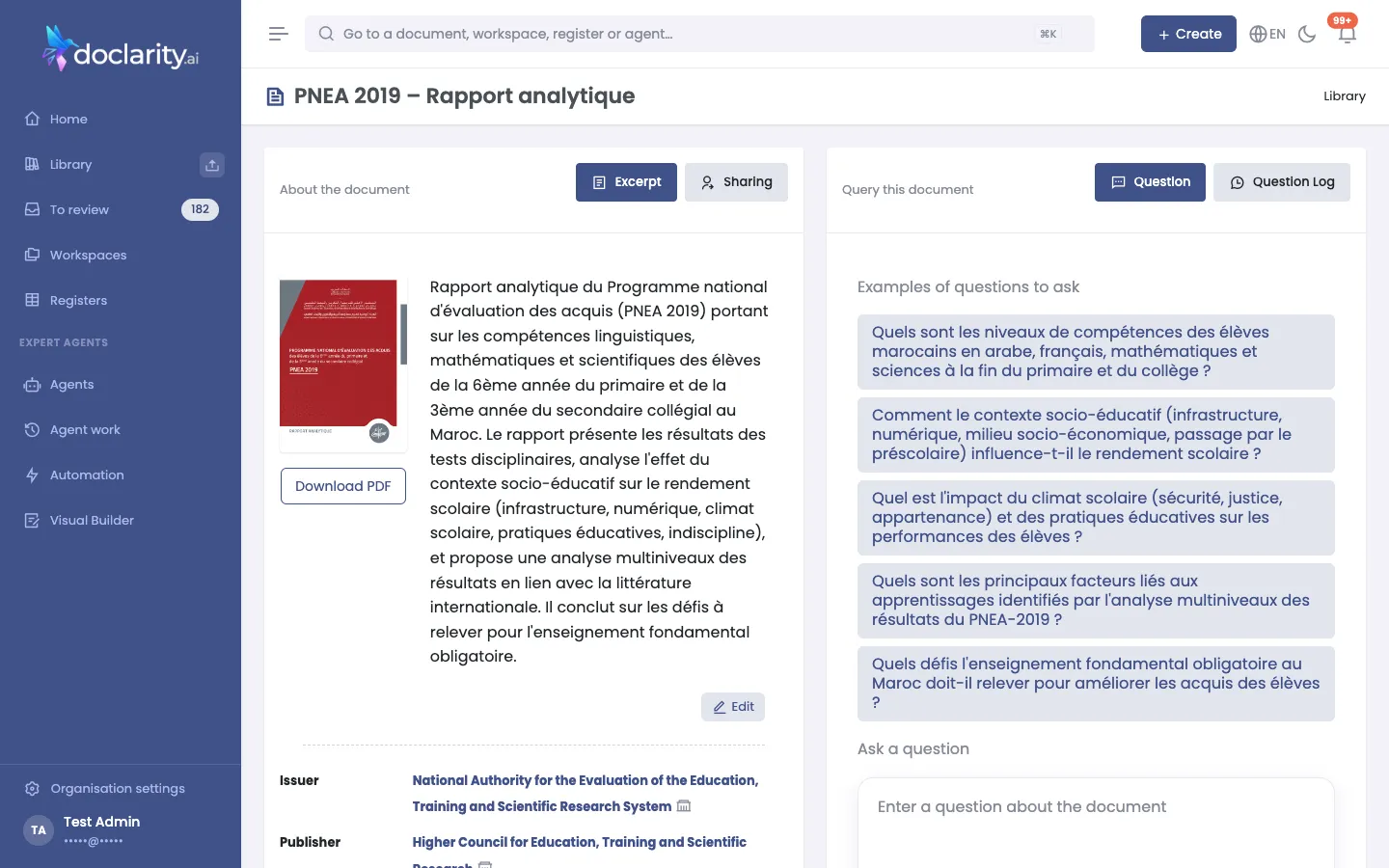
What the page shows
Section titled “What the page shows”- About the document: a summary, then the record: Issuer, Publisher, Document type, Official title, Language, Series, Folder, Pages, Publication date, Period, Geography, Purpose, Intended audience, Topics, Keywords, and when known Internal references, Rights, Origin address. A clickable value leads to the other documents with the same value.
- Under the record: “Details checked by …” when a person has reviewed it, or “Changed since the check …”.
- A badge says where the document stands: In force, Replaced, Draft (the document presents itself as a draft and is not the edition in force), Awaiting approval, Not approved or Withdrawn. See Versions and editions.
- For a procedure, Draft the new edition starts the Procedure Writer from this edition. You only add what changes.
- View Document: reads the whole document. Download PDF saves it to your computer.
- Facts: the decisions, positions, commitments and roles cited in this document.
- What goes with it: editions, translations and copies (for example a French report linked to its Arabic version, marked Parallel official), the agent runs on this document, and the registers and workspaces that hold it.
Correct the record
Section titled “Correct the record”If you have the right, Edit next to the record opens What this document establishes: title, language, type, topics, keywords, authors, summary, identifiers, Internal references, Rights, and one field per classification plan. A value you enter is never replaced by Doclarity.
After review, Mark the details as checked: the page shows who checked it and when, and the Library can filter on Details.
Edit relationships adds or removes a link (replaces, amends, translates, cites…).
Ask this document alone
Section titled “Ask this document alone”- In Query this document, type your question, or click one of the Examples of questions to ask.
- If needed, choose the framework and the answer language.
- Click Send question.
- The answer opens with its quotes. It is saved in the folder shown under Save to Folder.
Your earlier questions about this document are under Question Log.
Known limits
Section titled “Known limits”- The record is filled automatically on import. Check it for important documents: an issuer or a date can be misread on a scan.
- Only people who can open the document see its page.