

Registers
What it is for: following, in a live table, what your organisation must do or prove, each row linked to the document and page it comes from.
The register types:
| For | Types |
|---|---|
| A governance body | Decision, Action, Recommendation, Commitment, Information request, Indicator |
| Quality, safety, environment | Nonconformity / CAPA, Compliance obligation, Risk or opportunity, Incident, Audit finding, Checklist item, Training record, Master document list, Request for proof |
The types of your organisation’s Domains (set by an administrator) are offered first. The others stay available under Other types, so nothing is blocked.
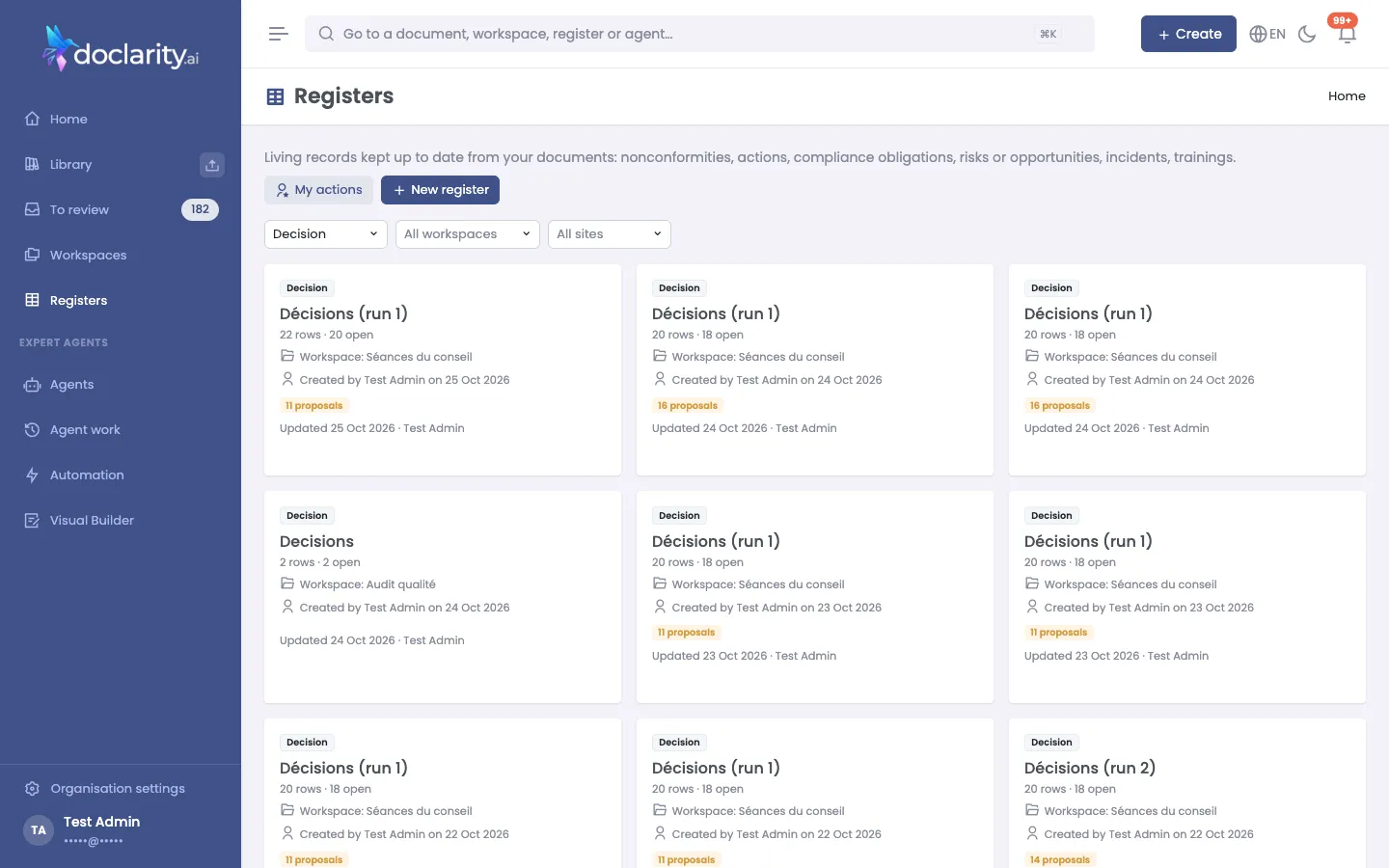
Create a register
Section titled “Create a register”- Registers › New register (or Create › New register).
- Choose how to start: Empty, from a type, From an Excel or CSV file or From an agent output. Then the type, a name, and where to keep it (a workspace or a folder).
- Confirm. The register is empty. Fill it in one of the three ways below.
Fill a register
Section titled “Fill a register”- From minutes (for a governance body): run Extract Actions from Minutes, then Add to a register on the run’s page.
- Add from documents or Import a spreadsheet: see Fill a register from documents.
- Add a row by hand.
Confirm the proposals
Section titled “Confirm the proposals”What comes from a document arrives as proposals: Nothing changes until you confirm.
- In the register, the “N proposed changes are waiting for your review” banner › Review (or To review in the menu).
- For each proposal: compare with the quoted source, correct if needed, then Confirm or Reject (with an optional reason).
- To go faster: Confirm all proposals with nothing to check. Flagged ones, possible duplicates and conflicts stay for you to decide.
Read a register
Section titled “Read a register”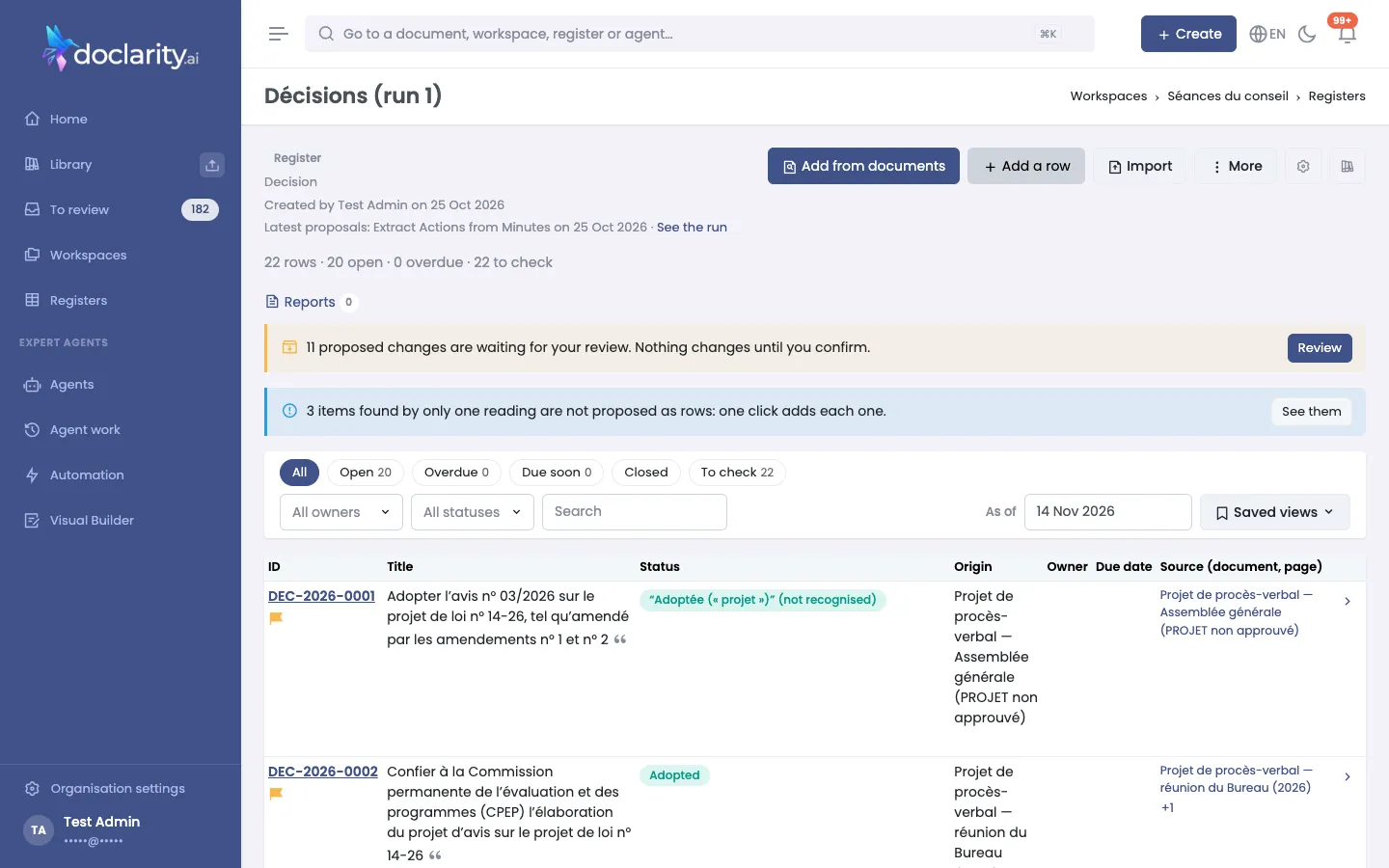
- At the top: rows, open, overdue, flagged.
- Filters: All, Open, Overdue, Due soon, Closed, To check, by owner, by status, by search, As of and Saved views.
- Columns: ID (for example DEC-2026-0001), Title, Status, Origin, Owner, Due date, Source (document, page). A click on the source opens the passage.
Share a register’s state
Section titled “Share a register’s state”- Export: Excel or CSV (current filters), or a calendar (ICS) of due dates. The file is also saved in the Library next to the register.
- Create report: a dated document of the register’s state, kept next to it under Reports. It does not change when the register changes.
Reminders and evidence
Section titled “Reminders and evidence”- The register’s Settings › Send reminders: a reminder to the owner before the due date (the days you set), then on the due date, the day after, and every week while the row is overdue. For an owner with no account, the reminders go to the owner and to the register’s editors. For a row, Snooze reminders until pauses them until a date.
- Verify evidence (action registers): Doclarity looks in the workspace’s documents for what shows a row is done, or contradicts it. It proposes and nothing changes before you confirm.
Known limits
Section titled “Known limits”- An owner written in minutes (“Mr X”) is not an account: link your names once in My actions to find your rows (see To review and My actions).
- A row whose source names no owner or due date stays empty on those fields: Doclarity does not make them up.
- Only a register’s editors confirm proposals, and others can read them.