

Workspaces
What it is for: bringing together, around one matter (a referral, a meeting, an opinion in preparation), the sources, documents, registers, agent runs and people working on it.
Create a workspace
Section titled “Create a workspace”- Create › New Workspace (or Workspaces › New Workspace).
- Workspace Name: one the members will recognise. Description, Default Language and Theme: optional.
- Add Team Members: tick the colleagues to invite. You can add more later.
- Enable automatic collaboration for all workspace members: all members can then work on the workspace’s documents, one person at a time.
- Create Workspace. The workspace opens.
A workspace’s page
Section titled “A workspace’s page”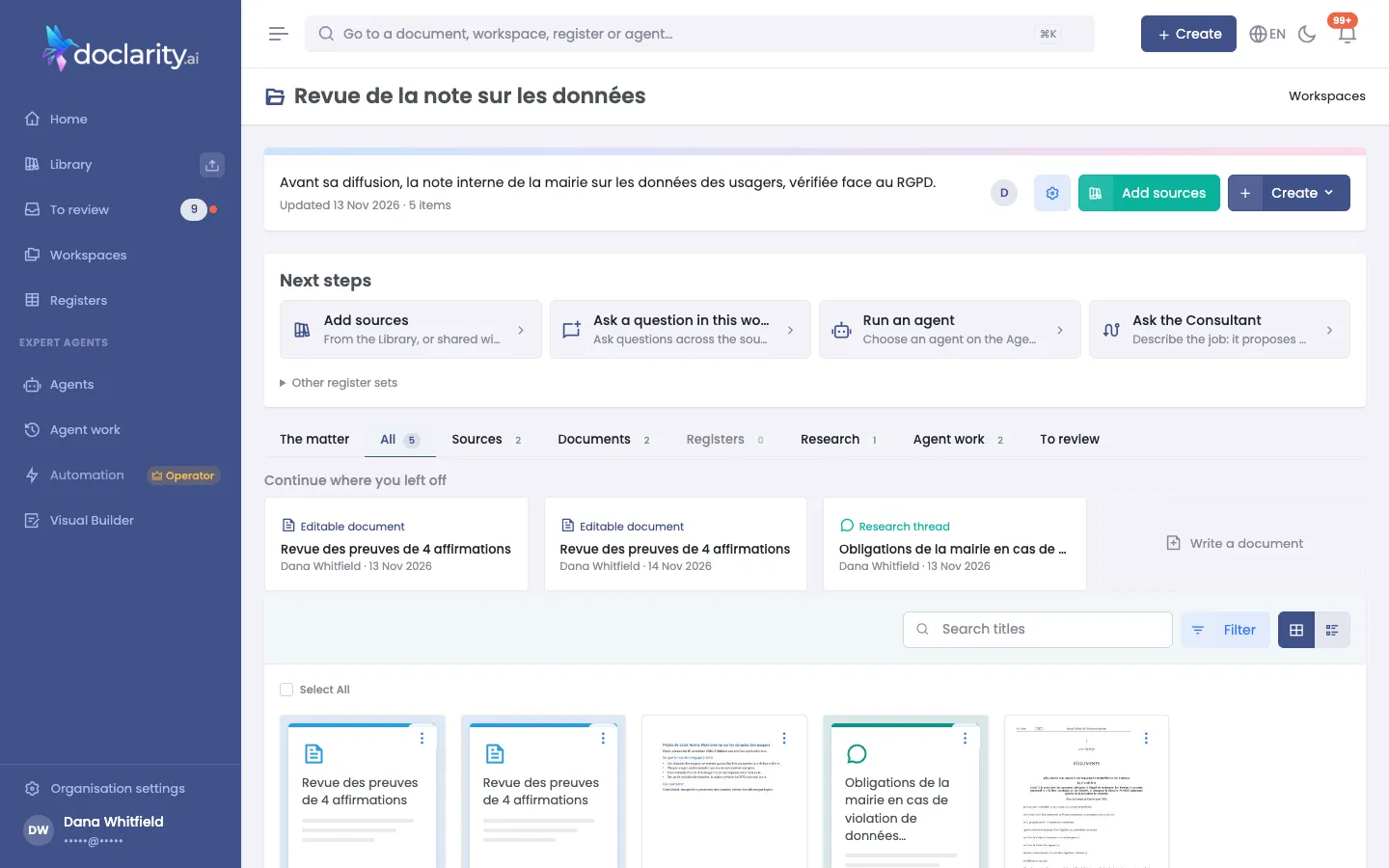
- At the top: Conclude (prepares a note for decision, shown to the owner and editors once the workspace holds a register or an agent run), Add sources, Create (research thread, document, agent, folder), and the settings cog.
- What this workspace covers (on the tab The matter): optional. Who the work is for, its reference, period and stage, so that search and agents read your documents in context. Doclarity can suggest a description (“1 suggestion to check”).
- Next steps: the workspace’s registers and useful actions.
- Tabs: The matter, All, Sources, Documents, Registers, Research, Agent work (the workspace’s agent runs), To review.
- Continue where you left off: the most recently changed documents.
Add sources
Section titled “Add sources”Add sources, then choose documents from the Library or from those shared with you. The workspace’s members can then read them and use them in their research, documents and agents. The document stays where it was.
A member who edits the workspace can also add an organisation document they can read: on the tab The matter › Add a document as the reference › Choose a document. The reference gives nobody access. A member who cannot open that document sees “A document you cannot open”.
Roles in a workspace
Section titled “Roles in a workspace”| Role | Can |
|---|---|
| Owner | everything: members, roles, rename, theme, archive or delete. |
| Editor | add sources, write, run research and agents in the workspace. |
| Viewer | read the workspace’s content. |
These roles belong to each workspace. They do not change the person’s role in the organisation.
Invite members
Section titled “Invite members”Workspace settings › Invite: search by name or e-mail, choose Their role, then Add 1 member (or Add N members). Only people from your organisation can be invited.
Archive
Section titled “Archive”Settings › Danger Zone › Archive Workspace. The workspace leaves the lists. Its members can still open it and read its content, but nothing can be added or changed. The owner can Restore it.
Known limits
Section titled “Known limits”- The number of workspaces depends on your plan: 5 for Author, 20 for Builder, no limit for Operator, none for Access.
- The last owner cannot leave the workspace: make someone else owner first.
- Research run in a workspace reads only the workspace’s sources. If the answer is not there, Doclarity can point to documents in your Library, outside the workspace, that may cover it.