

The editor
What it is for: writing a note, an opinion or a report inside Doclarity, with passages written from your sources and quoted.
Open the editor
Section titled “Open the editor”- New document: Create › New Write Document.
- A document produced by an agent also opens in the editor (Open on the run’s page).
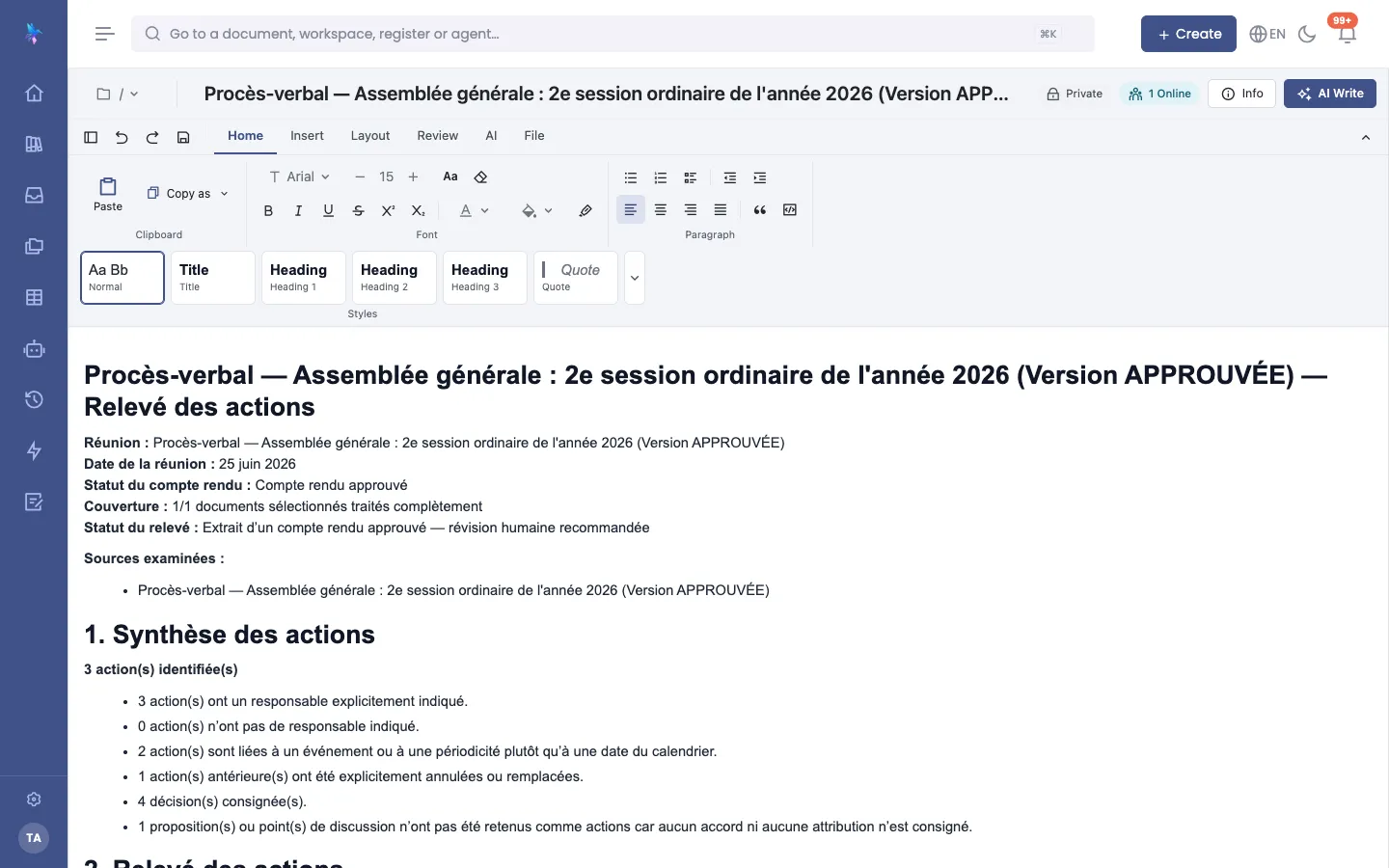
The screen
Section titled “The screen”- At the top: the folder (click to change it) and the title (double-click to rename it). Saving is automatic.
- Next to the title: the access (Private, or shared), how many people are online on the document, Info and AI Write.
- The ribbon: Home (font, paragraphs, styles), Insert, Layout, Review, AI, File.
Have a passage written (AI Write)
Section titled “Have a passage written (AI Write)”- Put the cursor where the text should go.
- Click AI Write.
- Describe what to write (Your request), choose the language (Reply in) and, if needed, a framework (Choose a framework) and filters (Advanced options).
- Click Generate Document. The text is written from your sources, with quotes, at the cursor.
Your earlier requests are in History (AI Write History).
Rework a passage (AI Edit)
Section titled “Rework a passage (AI Edit)”- Select the passage.
- Click AI Edit.
- Choose: Improve writing, Make shorter, Make longer, Continue writing, Create summary, Extract key points, a tone (Professional tone, Straightforward tone…) or Correct spelling & grammar.
- Read the proposal, then Replace Selection, Add After Selection or Reject.
Work together
Section titled “Work together”- Share the document (see Folders and sharing) with the Editor role. One person edits at a time: the others see their changes live and click Request editing. The person writing can Hand over.
- The number of people online shows to the right of the title.
- Comments: select a passage, type your comment, Comment. Others reply in the comment’s thread. Mentioning someone notifies them.
Known limits
Section titled “Known limits”- AI Edit reworks the passage using only the sources it already quotes. It does not look for new sources. To add facts, use AI Write.
- Read every generated passage and its quotes before sharing. See Check a quote.