

Add a web page
What it is for: keeping a web page (a press release, a regulation page, an online guide) as a source, dated and quotable like a document.
Capture a page
Section titled “Capture a page”- Create › Add from a link, or the From a link tab of the import page.
- Paste the address under Page address: one address per line, 20 at most. Doclarity fetches that page alone and follows no link.
- Click Capture the page.
- When the capture is Ready to check, click Check, read it, then Confirm and add to the Library.
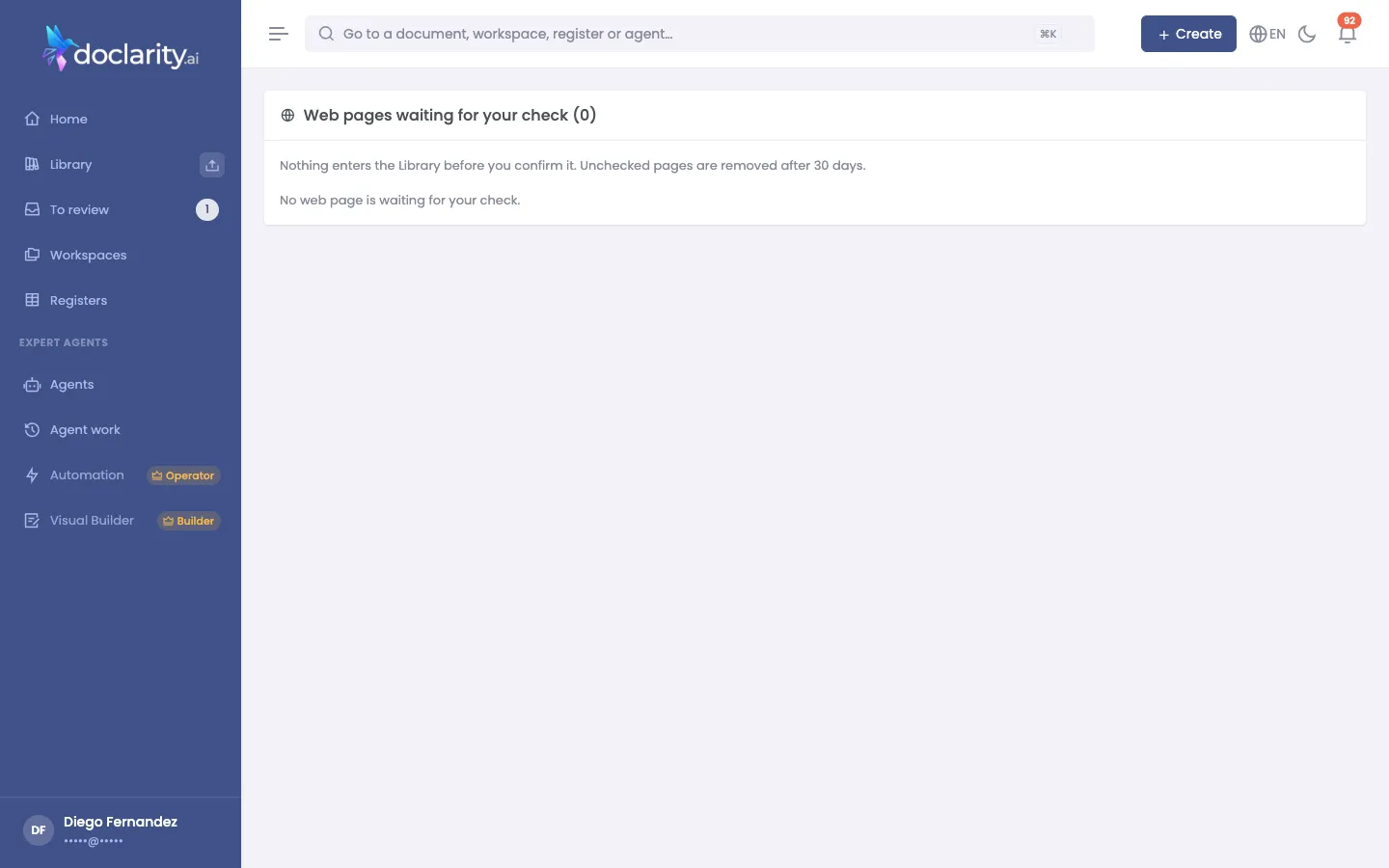
Nothing enters the Library before you confirm. Pending pages are listed on the Web pages waiting for your check page. In the Library and on the import page, a banner leads there (Check the web pages). Unchecked pages are deleted after 30 days.
- If the address leads to a file (a PDF, say), Doclarity says so: click Add it as a document.
- Doclarity does not download the files linked from the page. To keep one, Add a file from this page on the check page.
- A page saved from your browser (MHTML or HTML) goes through the same check.
- An address already waiting for its check is not captured a second time: “This page is already waiting for your check. No second copy was made.” After you confirm, Open the document leads to the document that was added.
Capture a page again
Section titled “Capture a page again”- If the page has not changed, the capture says so (“checked, unchanged”) and nothing is added.
- If it has changed, the new capture becomes a new edition of the same document, after your check.
- When several pages are ready, Confirm the N pages that are ready adds them in one go.
Known limits
Section titled “Known limits”- Doclarity only captures public pages. For a page behind a sign-in, save it from your browser (MHTML or HTML) and import the file.
- Doclarity does not follow a page over time. It captures it when you ask.