

Languages
What it is for: setting the language of the screens and the language of answers, which are two separate settings.
Change the interface language
Section titled “Change the interface language”- In the top bar, click the globe (EN).
- Choose English, French, Arabic or Spanish.
- The page reloads in the new language. The choice is saved on your account, so it follows you on every computer.
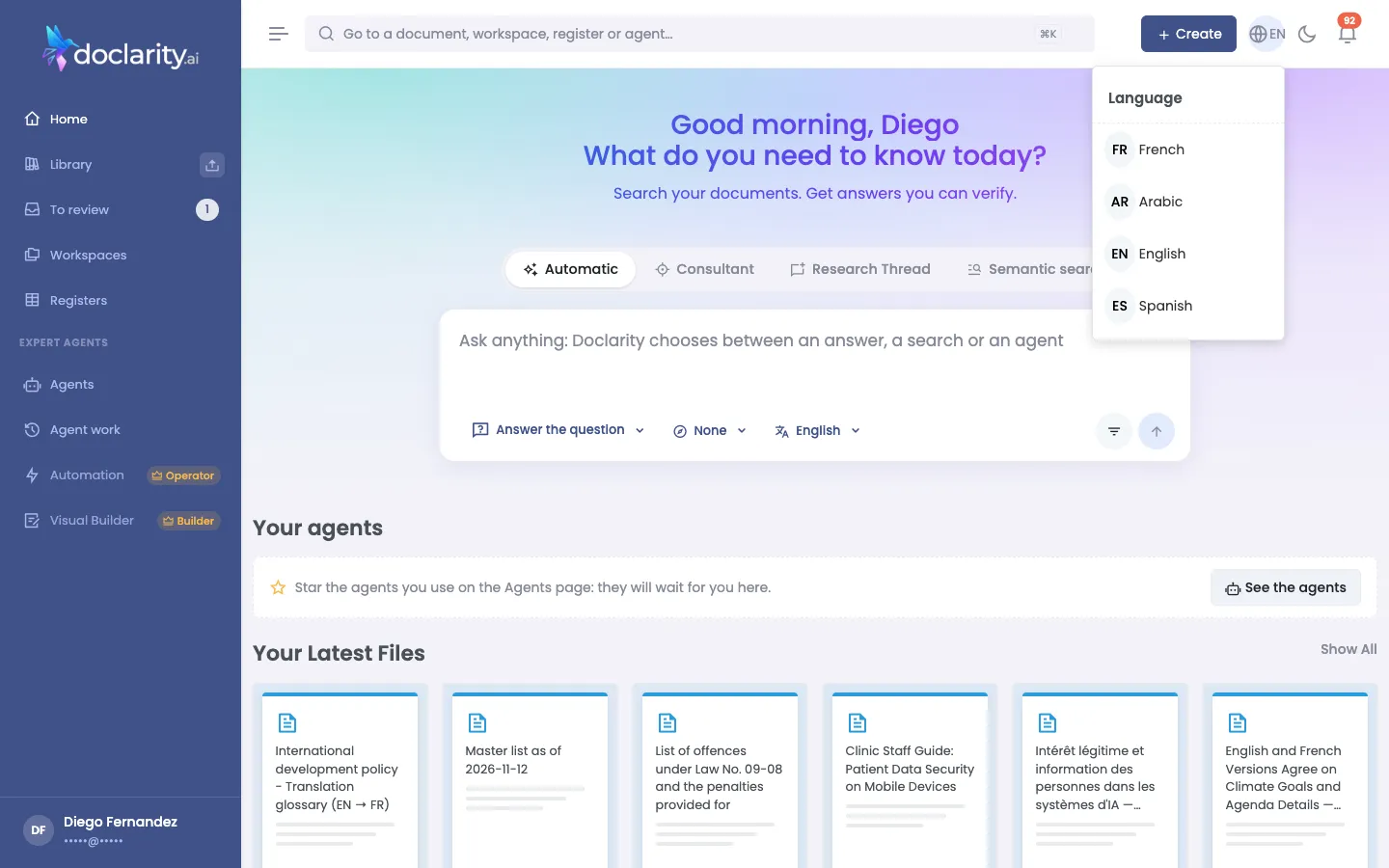
In Arabic the whole interface switches to right-to-left. Numbers stay in Latin digits (0-9) in every language.
Choose the answer language
Section titled “Choose the answer language”The interface language does not set the answer language. Under each question box, and in each agent’s form (Reply in), you choose the language of the result.
- You can ask Arabic documents and get the answer in French, or the other way round.
- Quotes stay in the language of the quoted document: an Arabic passage is quoted in Arabic.
The language of documents
Section titled “The language of documents”- On import, Doclarity recognises each document’s language and writes it on its record (Language field).
- For a scanned document you can say which languages to recognise: Advanced options › Choose OCR Languages. Leave this field empty in most cases.
- An official translation can be linked to its original: the document page shows it under Translations.
Known limits
Section titled “Known limits”- Agents that build a guide (terminology, style) only read documents recorded in the chosen language. A badly recognised document (a bilingual PDF, say) can be left out: check the Language field of its record.
- Arabic quality depends a lot on the source document: a poor scan gives imperfect recognised text, and so less clean quotes.