

Research thread
What it is for: getting a written answer from your documents, where each claim points to the passage that supports it.
Ask a question
Section titled “Ask a question”- From Home, the Research Thread tab (or Automatic with a real question), or Create › New Research Thread.
- Write your question in your own words, as you would ask a colleague. Example: “What do our procedures say about receiving supplier deliveries?”
- If needed, set under the box: the kind of answer (Answer the question by default), the framework (None by default) and the answer language.
- To narrow the sources, open the filter (or Advanced options): document type, date, publisher, folder…
- Send. A window shows progress: finding passages, reading, writing, checking.
Read the answer
Section titled “Read the answer”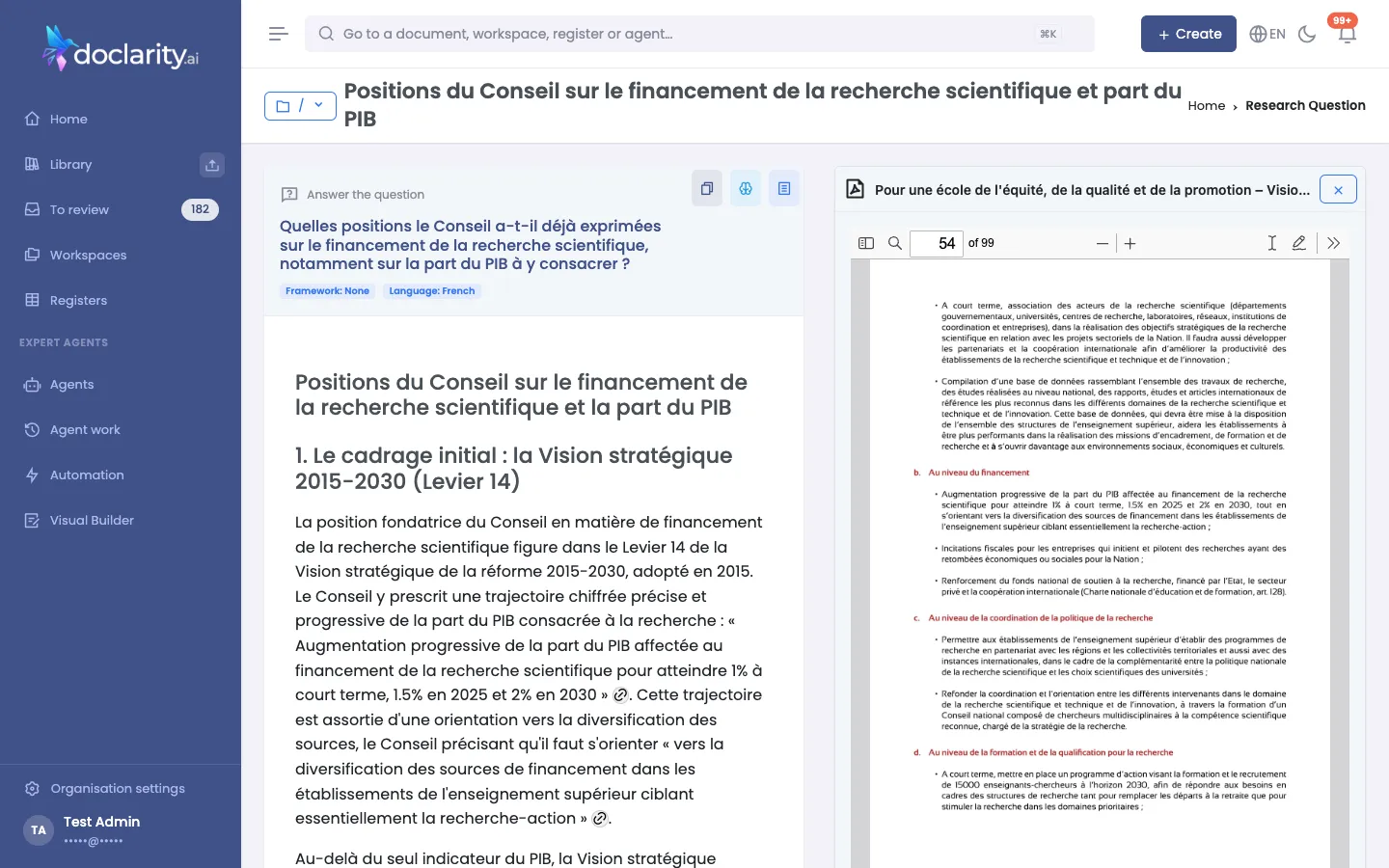
- At the top: your question, with the framework and language used.
- Each quote is a small icon at the end of the sentence. Click it: the document opens on the right, at the right page.
- The three buttons at the top of the answer: copy, show the reasoning, show the list of sources (with the pages used).
- When the thread opens, the viewer shows the first document cited. A number such as “[1]” in the text also opens its source.
- Under the answer: Spent: … shows the credits actually used.
- Versions: when the answer relies on a document with several editions, Doclarity says which one was in force.
- Already said elsewhere in your Library: decisions, positions and commitments found in other documents. They were not used for the answer.
Ask a follow-up question
Section titled “Ask a follow-up question”Type the next question in the box at the bottom of the thread: it continues the same thread, with the context of the earlier questions.
Where the thread is saved
Section titled “Where the thread is saved”The thread is saved in My work, in the folder chosen with the folder button at the top left (Save to Folder). Started from a workspace, it stays in that workspace.
When Doclarity does not find it
Section titled “When Doclarity does not find it”The answer says so plainly:
- Not found in your Library: no document you can open answers. The closest documents are listed, without being presented as an answer.
- In a workspace: Not found in this workspace, sometimes with documents from your Library, outside the workspace, that might cover it. Add them to the workspace and ask again.
Known limits
Section titled “Known limits”- The answer only comes from documents you can open. A document still being processed is not used yet.
- Unverified citations or Unverified quote: a quote was not found as written in the source. Check before using the sentence.
- Figures to check: a figure is not in the quoted excerpt (it may have been calculated). Open the source.
- AI can be wrong: always check the quotes behind important passages.