

Bodies
What it is for: knowing who issued each document, and filtering the Library by body even when its name changed.
What every user sees
Section titled “What every user sees”On import, Doclarity reads each document’s issuer (a council, an authority, a ministry…) and links it to a body record. On a document’s page, the Issuer is clickable: it leads to the other documents of the same body.
The Bodies view (curators)
Section titled “The Bodies view (curators)”In the Library, Bodies lists the bodies of your documents: Name, Type, number of Documents. The number shown on Approvals counts the proposals to handle (the new badge only means the view is recent).
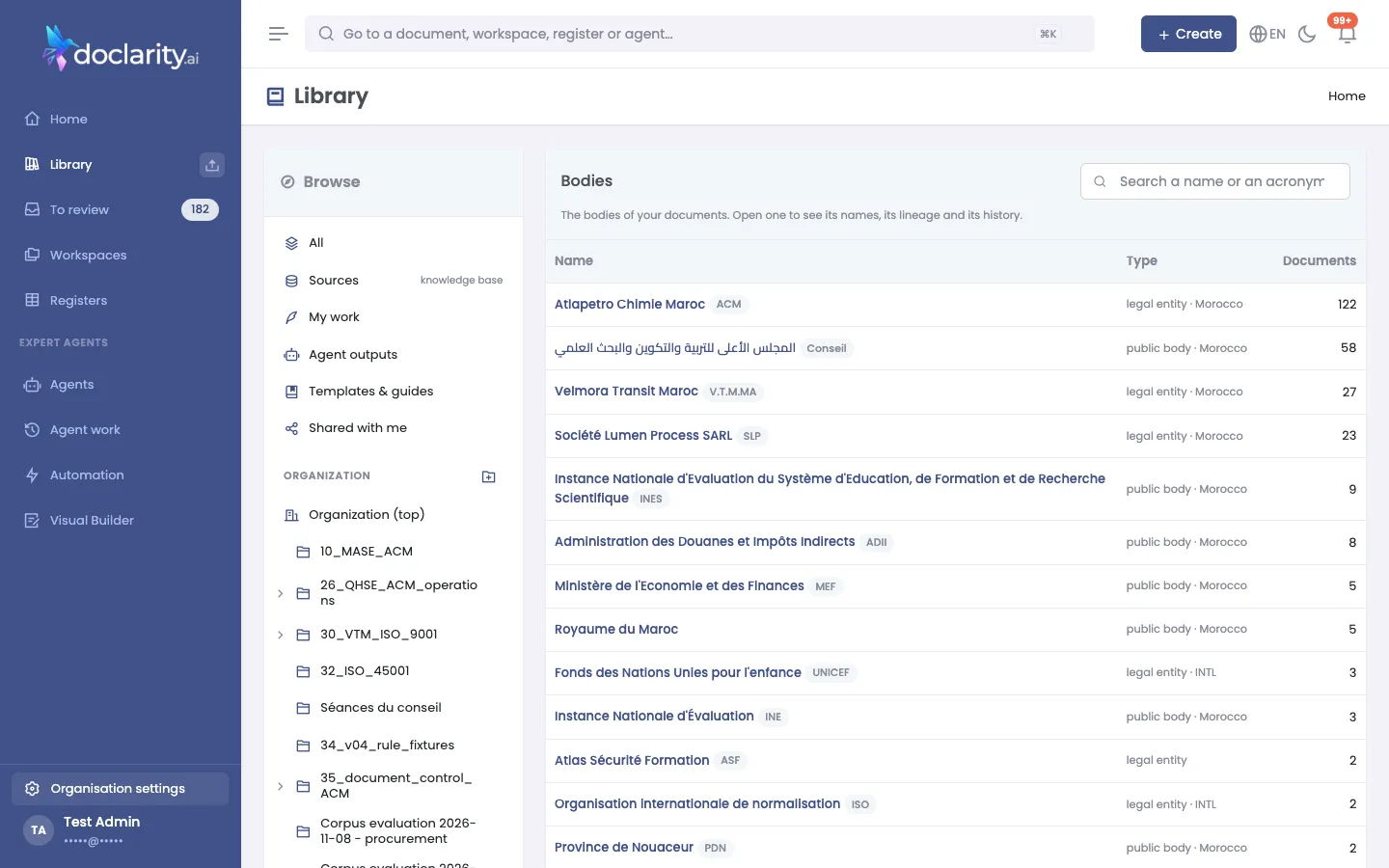
Open a body to see its Names (including former names, dated), its Lineage (part of, successor of…) and its History.
A curator can Add a name there (with its dates of use and, preferably, a source) or Add a link to another body (source required). Each change in the History can be reversed (Undo): everything it did is taken back.
Handle a proposal
Section titled “Handle a proposal”When import finds two records that may be the same body, or a link between two bodies, it proposes and a curator decides.
- Open Approvals › Bodies tab.
- Read Why this proposal: shared names, dates, the name printed on the documents.
- Under Your decision, choose for example The same body, renamed, The mission changed: one succeeded the other, One is part of the other, The same body, two ways to name it, Two bodies with no link or Confirm this link. What will change sums up the effect.
- Click Confirm, or Later to leave the proposal pending. The Library’s filter by body takes it into account at once.
Example: if an authority is a unit of a council, filtering on the council includes the authority’s documents. To see only the council’s, turn on This body only in the filter.
Known limits
Section titled “Known limits”- Only curators and administrators see body proposals.
- A decision affects the whole organisation’s filters: when in doubt, leave the proposal pending and check the documents.