

Export and import records
What it is for: working on many documents’ records at once in Excel, then putting them back into Doclarity. For curators and administrators.
The Records menu is at the top of the Library, next to Filter.
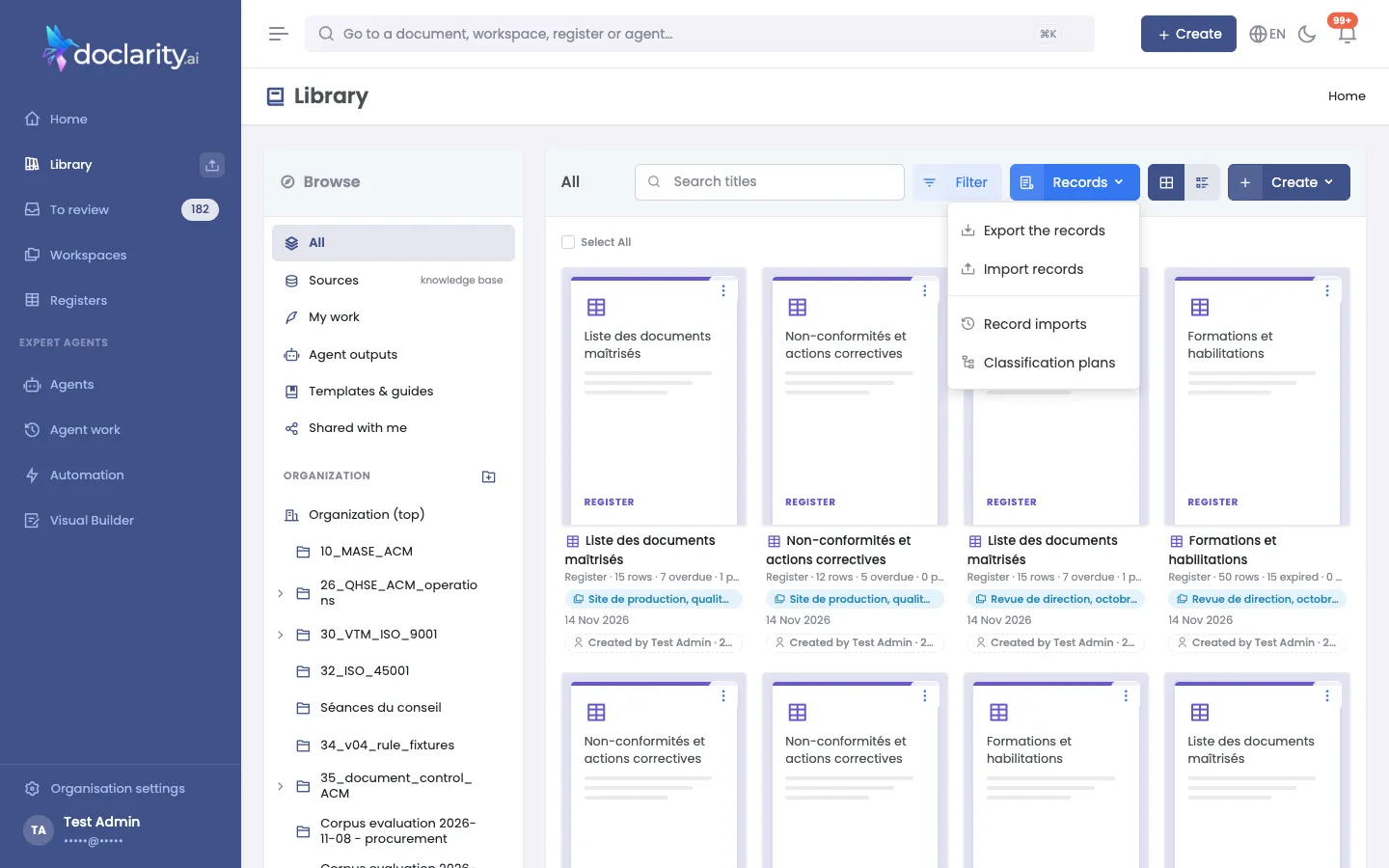
Export the records
Section titled “Export the records”- Show the view or folder you want, filter if needed. For a few documents only, tick them.
- Records › Export the records.
- Under What you export, choose The view shown or The selection.
- Choose the Format: Excel (recommended: one row per document, one column per field, and an “About” sheet), CSV, or Dublin Core for a library catalogue.
- Export. The file downloads and nothing is saved in the Library.
Only documents you can open are exported, 5,000 records at most. The hidden columns docid and metadata_revision are used to import back: do not change them.
Import records
Section titled “Import records”- Records › Import records.
- File: choose or drop a spreadsheet (XLSX, XLS, ODS or CSV, 5,000 rows and 10 MB at most).
- Columns: for each column of the file, choose the target Field (or Do not import), the Matching key (by Doclarity ID, by link, by internal reference, by file name, by title…), the date format, and what to do If the field already has a value.
- Check: read the Examples before → after. Nothing is written before this step.
- Import N rows. You can close the window: a notification tells you when it is done. Download the report gives the detail row by row.
Undo an import
Section titled “Undo an import”Records › Record imports lists each import (date, by whom, file, rows, fields written). An import can be undone for 30 days: the earlier values come back wherever the field still holds the imported value. A curator undoes their own imports, and an administrator can undo anyone’s.
Known limits
Section titled “Known limits”- 5,000 rows and 10 MB per file: split larger files.
- Documents written in Doclarity, notes and registers are not exported.